
Guide
How to use Monevo
What each part of Monevo does, when it helps, and how to use it, with screenshots of the real app filled in with made-up demo data. Jump to the parts you need: you don't have to use everything.
Getting started
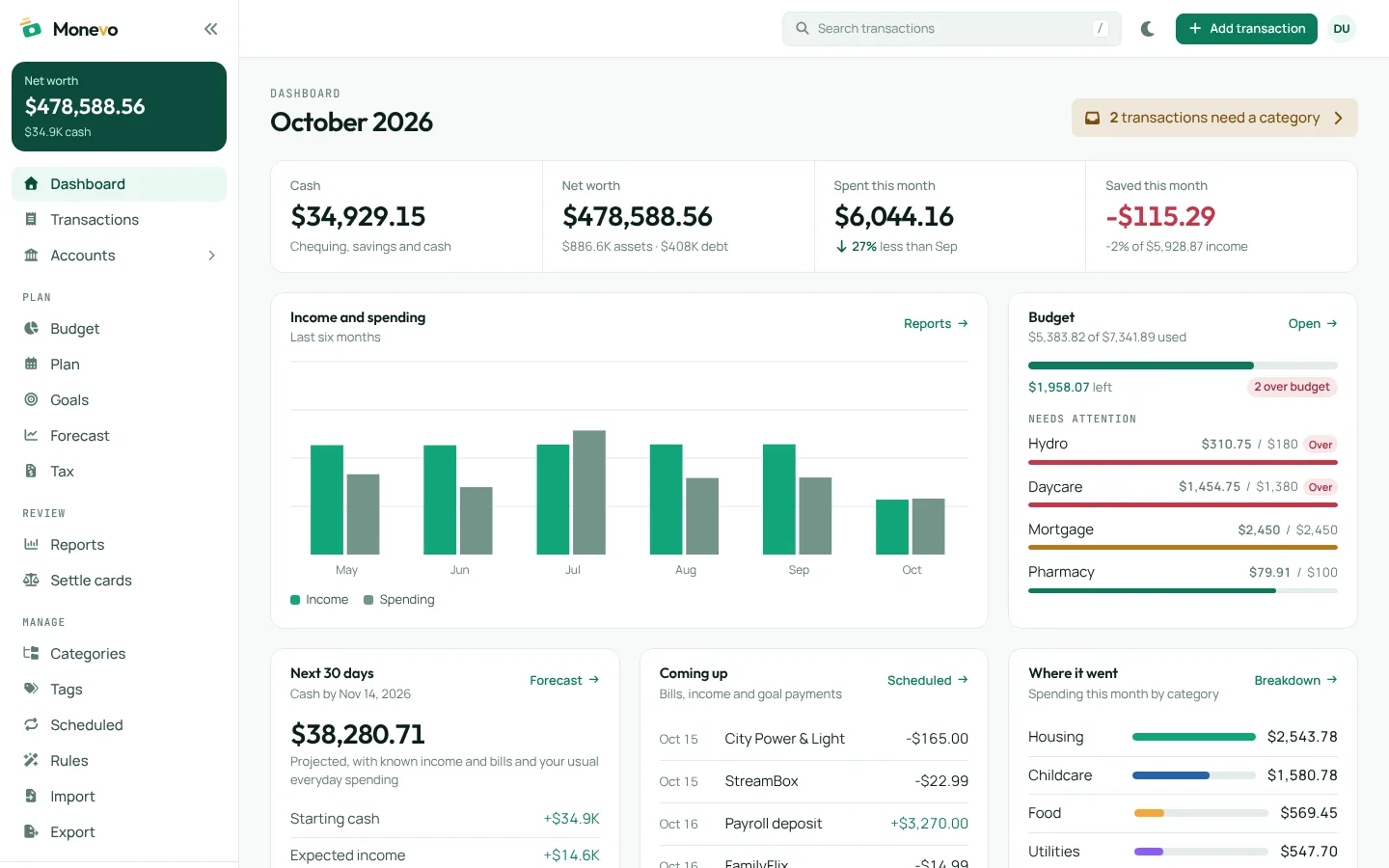
Sign in with your Google account and you begin with an empty Monevo. The dashboard walks you through the first three steps.
When to use it: Start here if you're new. Most people add their accounts first, then bring in their history.
How to
- Select Get started and continue with Google.
- Add the accounts you want to track: chequing, savings, credit cards, loans, and things you own like a home or car.
- Import a CSV of past transactions, or start recording new ones as they happen.
- Open the dashboard: it fills in from your accounts and transactions.
Accounts and net worth
Accounts hold your money and your debts. Their balances come from the transactions recorded in them, and together they make up your net worth.
When to use it: Use it to see everything you own and owe in one list, and to keep each balance in step with your bank.
How to
- Open Accounts and select Add account.
- Choose a type, such as Chequing, Credit card, Mortgage, Property or Vehicle, and enter the opening balance.
- Record transactions against it, or import them.
- If a balance drifts from your statement, edit the balance and choose to record an adjustment or change the opening balance.
- For a home, car or investment, open its details and record a new valuation when you know one.

Adding and managing transactions
The ledger is every transaction across your accounts: what was spent, earned, refunded or moved between accounts, and what is scheduled ahead.
When to use it: Record spending as it happens, find something you bought, or tidy up many transactions at once.
How to
- Select Add transaction, or press N anywhere in the app.
- Choose Expense, Income, Refund or Transfer, and enter the amount, date and account.
- Optionally add a category, description, merchant and tags. Use Several to enter a batch in one go.
- Search descriptions, merchants and notes, and narrow the list with filters for date, account, category, tag, type and amount.
- Select a row to see or edit it, split it across categories, or tick several rows to change them together.

Categories, tags and rules
Categories say what kind of spending something is. Tags say what else it belongs to. Rules apply both to new transactions for you.
When to use it: Use categories for budgets and reports, tags for things that cut across them like a trip or a child, and rules for anything you categorise the same way every time.
How to
- Under Manage, open Categories to add or rename categories in two levels: a group, such as Food, and the kinds within it, such as Groceries.
- Open Tags to create, rename or merge tags.
- Open Merchants to choose the icon a merchant shows in your transactions instead of its name. Popular merchants are recognised by name.
- Open Rules and add one: if the description contains some text, set the merchant, category or tags.
- Select Apply to unreviewed to see what your rules would change in transactions that are uncategorised or marked for review, then apply it. Undo takes it back.

Importing and exporting
Bring in transactions from a CSV file, and take all of your records out again whenever you want.
When to use it: Use import to load past transactions from your bank or another finance app, and export for a spreadsheet or a backup.
How to
- Download a CSV of transactions from your bank or finance app.
- Open Import and choose the file.
- Match the file's columns to date, description and amount, and pick the account the rows belong to.
- Preview the import to see what will be created and which rows look like duplicates, then import.
- To take your data out, open Export and download transactions or accounts as CSV, or a complete backup.

Budgets and the yearly plan
A budget sets what each category can spend this month. The plan sets it for every month of the year, alongside your expected income.
When to use it: Use the budget to keep a month on track, and the plan to think a year ahead about what you'll spend and save.
How to
- Open Budget and enter a limit for each category you want to watch, or use Fill in from to start from last month, your plan or your own averages.
- Choose whether each category's unused money, or its overspending, carries into next month.
- Watch spent, left and month-end pace as the month goes on.
- Open Plan to set each category's amount for each month, or an annual figure spread evenly.

Scheduled and recurring transactions
Bills, pay and other regular payments, plus one-off transactions dated ahead. They appear in the ledger before they happen and feed the forecast.
When to use it: Add anything you know is coming, so you can see whether each account can cover it.
How to
- Open Scheduled and select Add recurring item.
- Enter the amount, the account it's paid from or into, and how often it repeats.
- Read each item's balance pill: the account's projected balance after that payment, marked when it would be short.
- To change one date, skip it, move it or adjust its amount from the transaction itself; edit the schedule to change them all.
- If Monevo suggests a schedule as a loan's payment, review it and link it so the payment reduces the loan.

Open scheduled and recurring transactions in Monevo Back to top
Forecast and projected balances
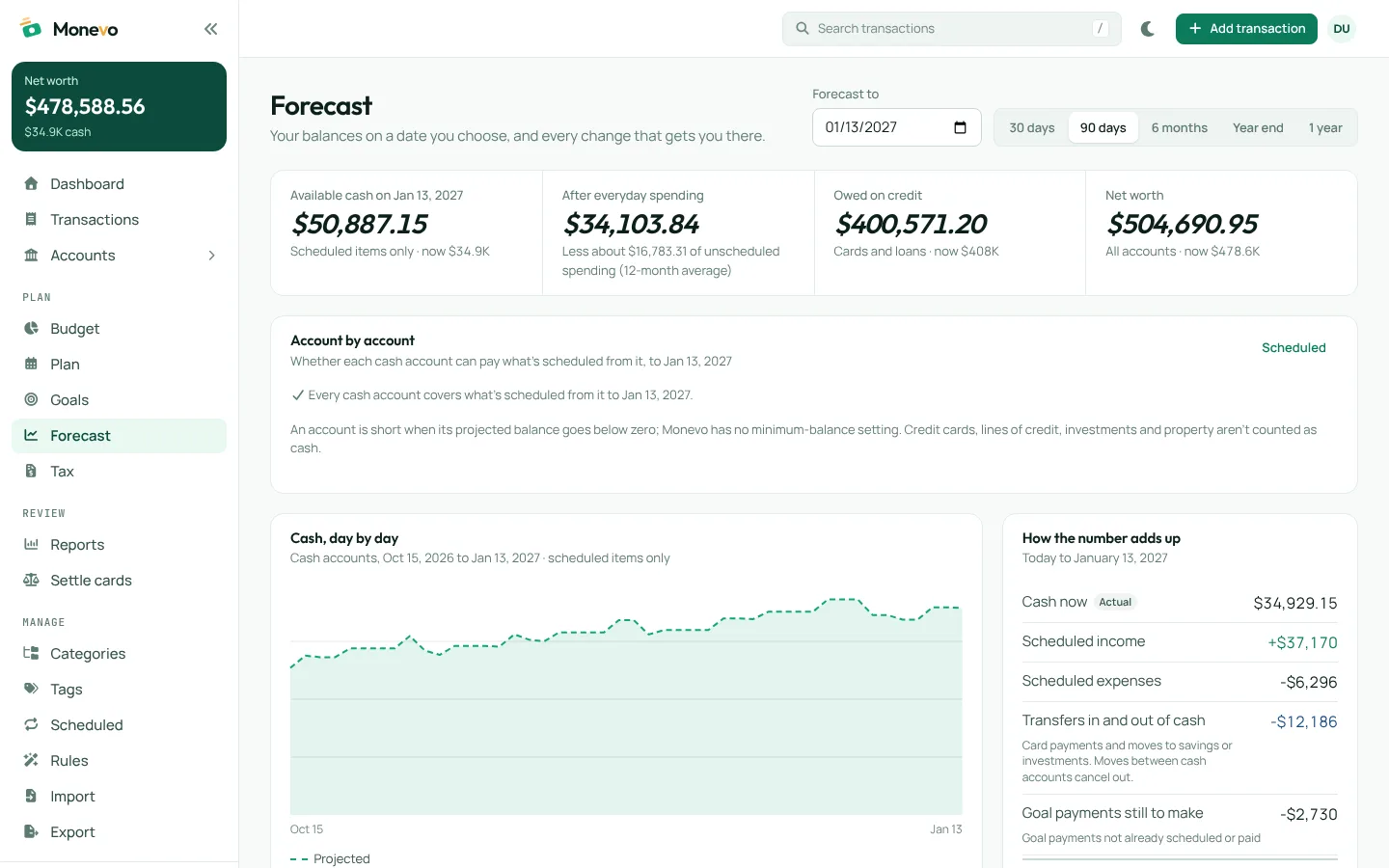
The forecast works out your balances on a date you choose, from today's balances, everything scheduled before then, and an estimate of your everyday spending.
When to use it: Use it before a large purchase or a quiet month, to see whether your cash holds up and when it would run low.
How to
- Open Forecast and choose a date, or a preset from 30 days to a year.
- Compare available cash from scheduled items alone with cash after everyday spending.
- Check Account by account to see whether each cash account covers what's scheduled from it.
- Read How the number adds up for every amount behind the result.
Goals
A goal plans a large expense: what it costs, when it's due, and what to save each month. Monevo checks your projected cash can pay for it in time.
When to use it: Use it for a trip, a car, a tax instalment or anything else you want to be ready for.
How to
- Open Goals and select Add goal.
- Enter the target amount and date, and the category it will be spent from.
- See the saving needed each month and whether the goal is on track.
- Optionally set money aside from an account. It's reserved in Monevo only; no money moves.

Mortgages and loans
Add a mortgage, loan or line of credit as an account, enter its terms, and Monevo shows each payment's interest and principal, the payoff date and the interest still to pay.
When to use it: Use it to understand a loan and test the effect of paying more.
How to
- Add an account of type Mortgage or Loan with what you owe today.
- Enter its terms: rate, compounding, start date, amortization, term or maturity date, and payment.
- Open its details to see upcoming payments, the payoff date and the balance expected at maturity.
- Use What if you paid more to try an extra amount each payment or a one-time prepayment.
- Link its scheduled payment, and reconcile with your lender's statement to record interest.

Tax planning
An estimate of your 2026 federal and provincial or territorial income tax, and whether you can expect a refund or a balance owing, from the income you enter and the transactions you confirm.
When to use it: Use it during the year to avoid surprises at filing time, and to see what a deduction like an RRSP contribution is worth.
How to
- Open Tax and complete your profile: the province or territory you lived in on December 31, your household and dependants.
- Enter income and tax withheld for you and, if you have one, your partner.
- Add deductions and credits, and any sole-proprietor business income and expenses.
- Review the transactions Monevo flags, such as child care or tuition. None counts until you confirm it.
- Read the estimate and its details to see how it was worked out.

Reports
Reports show where your money went and how that's changing: by category, tag and merchant, cash flow, trends, budget against actual and net worth.
When to use it: Use them to understand a month or a year, or to answer a question like how much a trip really cost.
How to
- Open Reports and choose a report and a period.
- Select a category group to see the categories inside it.
- Open any figure to see the transactions behind it.

Settling a shared credit card
For households that share a card: work out how much of a month's spending the joint account should pay and how much is personal.
When to use it: Use it at the end of a card's month or statement period.
How to
- Open Settle cards and choose the card and the period.
- Choose the categories or tags that mark shared spending, and what happens to everything else.
- Check the split between the joint account and personal savings, and review anything unclassified.
- Record the payments when you're ready.

Your data and settings
Your records belong to you: export them, back them up, restore them, or delete them.
When to use it: Use Settings for your profile and appearance, and before you stop using Monevo.
How to
- Open Export to download transactions or accounts as CSV, or a complete JSON backup.
- In Settings, choose Restore from backup to load a backup file.
- In Settings, Start fresh permanently deletes all your Monevo data. Your Google sign-in itself isn't deleted.
Questions and answers
What is Monevo?
A web app for keeping track of your accounts and spending and planning ahead with them: budgets, scheduled bills, cash forecasts, goals and loans, with a yearly plan and a Canadian tax estimate on Pro. It works from the records you enter or import.
Does Monevo connect to my bank?
No. Monevo doesn't connect to banks and never asks for banking credentials. You add transactions yourself or import the CSV files your bank or another finance app lets you download.
How are account balances worked out?
An account's balance is its opening balance plus every transaction recorded in it. If it doesn't match your bank, enter the correct balance: Monevo either records the difference as an adjustment transaction you can see in the ledger, or changes the opening balance, whichever you choose.
What's the difference between categories and tags?
A category says what kind of spending something is, like Groceries inside Food. A tag says what else it belongs to, like a trip, a child or a renovation. A transaction has one category (or a split across several) and any number of tags.
What happens when a scheduled payment's date arrives?
Monevo records it on that date as a posted transaction, because it can't see your bank to confirm it. You can skip, move or change the amount of any single date beforehand, and an imported statement row can be matched to it instead of creating a duplicate.
What does a projected balance mean?
It's what an account would hold on a future date if your balances, scheduled items and, where shown, your usual spending play out as recorded. It's an estimate to plan with, not a guarantee.
How does Monevo count assets, loans and net worth?
Net worth is what your accounts hold minus what you owe. Property, vehicles and investments are worth what you last recorded: Monevo doesn't look up market prices, so update their values when you know them.
Can Monevo file my taxes?
No. Tax planning, part of Pro (with your partner's estimate on Premium), estimates a 2026 refund or balance owing, from the income you enter and the transactions you confirm, under the rules of the province or territory you choose - fully for some, partly for others, and not yet for Quebec. It's for planning only: it doesn't file a return, connect to the CRA, or replace advice from a tax professional.
How do I correct or undo something?
Edit any transaction from its row or detail panel, change many at once with bulk edit, and undo a whole import from the import history. If you delete something by mistake, the Undo button in the header puts it back.
Is Monevo free?
Everyday money is: accounts and transactions, import, budgets, scheduled items, goals, the forecast, every report, loans and Settle cards. The yearly plan and tax estimates are part of Pro and Premium, which are arranged through Contact Sales for now. Export, backup and deleting your data are free on every plan.
Where is my data kept, and can I delete it?
Your records are stored in Google Firebase under your account, and only your signed-in account can read or change them. You can download everything as a backup at any time, and permanently delete your Monevo data from Settings.
Troubleshooting and help
- A balance doesn't match my bank
- Check for missing or duplicated transactions in that account first, then edit the balance and record an adjustment for any difference that remains.
- An import created the wrong rows
- Open Import, find it in the import history and select Undo import. Then import the file again with different column choices.
- The forecast or tax estimate looks wrong
- Open its breakdown. Each figure lists what it was built from, so a missing schedule, an unconfirmed transaction or an unentered amount shows up there.
- Something says it couldn't load or save
- Monevo says so instead of showing incomplete figures. Check your connection and reload; nothing that failed to save is shown as saved.
For how Monevo handles your information, read the privacy policy; for the terms of using it, the terms of use.